This is for users with admin access to Merlin Tickets. You can access the admin area by viewing your website (e.g. https://merlindemo.merlintickets.co.uk)then adding /admin to the end of the URL (e.g. https://merlindemo.merlintickets.co.uk/admin)
In this article, we will be showing you how to add terms and conditions to your .merlintickets website
In order to do this, you should be logged into the Merlin Online admin area.
Find 'Config' on the left-hand side menu:
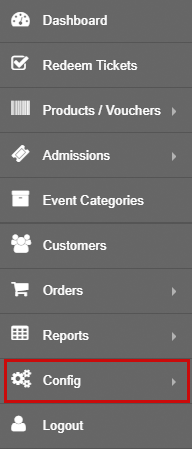
Once clicked, a drop down menu should appear, click 'Change Theme':
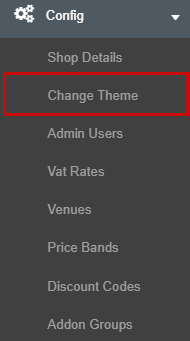
You will now be directed to the 'Theme Settings' page:
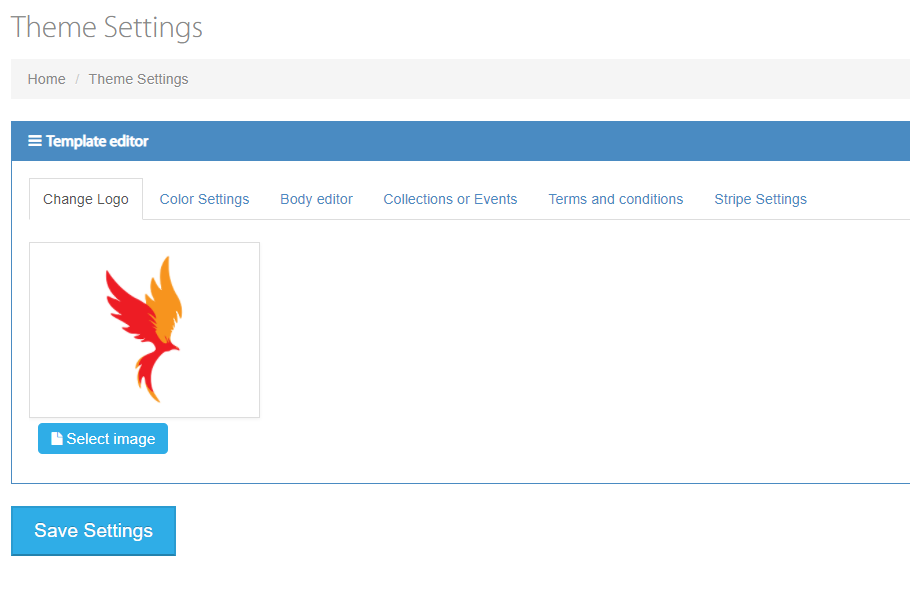
On the 'Theme Settings' page, go to 'Terms and conditions': 
Once on the 'Terms and conditions' section, you should see a text box, in that text box you can type up your terms and conditions.
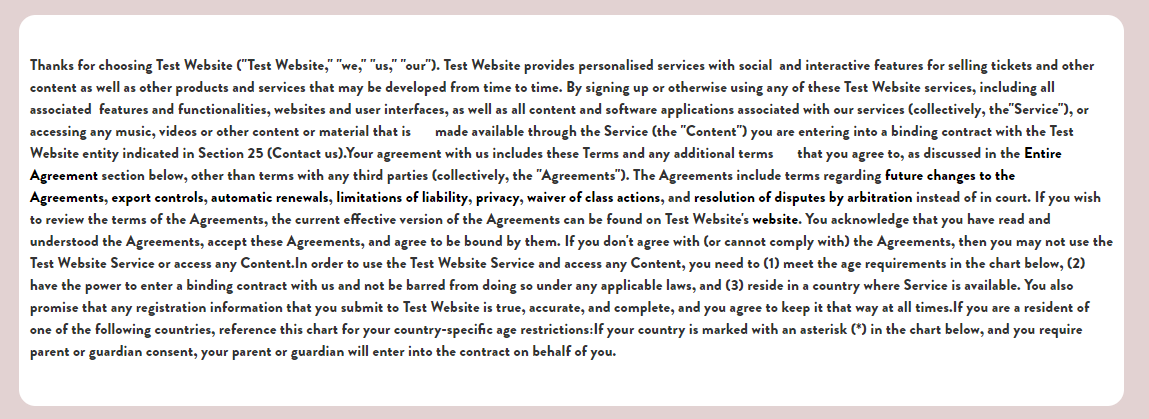
Here is an example:

To learn more about customising your text for both your events and condition sections, check this article: Making Your Event's Description More Eye-Catching
After you have completed your terms and conditions, click the  below the text box.
You can preview your terms and conditions by going to your website, scroll down to the footer of the page and click:
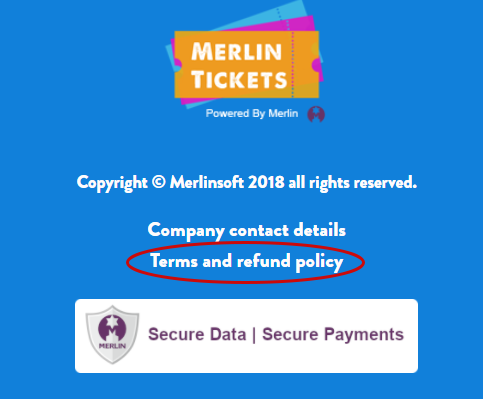
This will re-direct you to the terms and conditions you previously wrote, here is my previous example but on the online website:
That is all for creating your own publishing your own terms and conditions on your .merlintickets website.
0 Comments