This is for users with admin access to Merlin Tickets. You can access the admin area by viewing your website (e.g. https://merlindemo.merlintickets.co.uk)then adding /admin to the end of the URL (e.g. https://merlindemo.merlintickets.co.uk/admin)
Session Overriding allows you greater control over your events' sessions. It allows you to quickly adjust capacity for a single day (i.e. if you are running low on staff), block a day out or extend that session by a few more days.
To start off, make sure you are logged into the admin area. Once in the admin area, click the 'Admissions' drop-down and then click 'Events'


Once on the Events page, enter one of your existing events either by clicking the event's 'Event Code' or clicking 'Edit Event'  Inside the event's page, scroll down to 'sessions'

Click on one of your existing sessions by clicking on one of the start dates highlighted in blue as seen above. Inside the session, scroll down to the box titled 'Session Override' and then Click the '+Add' as seen in the image below. 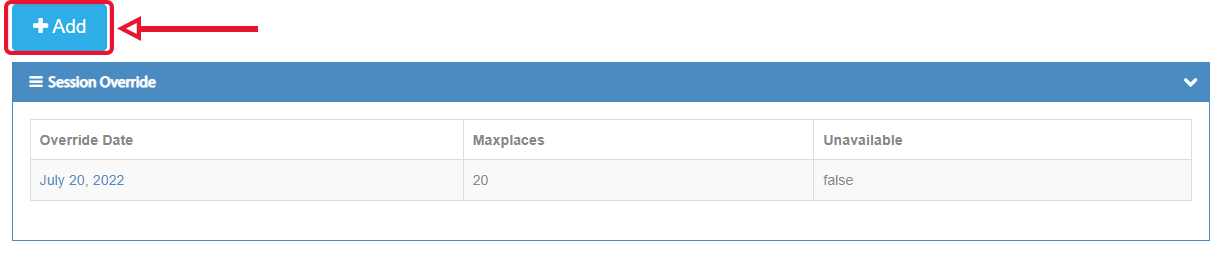
This will direct you to the create session override page. Which looks like this: 
Here is what each field does:
- Override Date From: This is where you pick the start date of the session override
- Override Date To: This lets you pick the end date of the session override
This means any date inside the event's session that is between the Override Date From and Override Date To will be impacted by this session override.
- Maximum Places: This is where you override the maximum places for the dates you specified in the text fields above
- Unavailable: Tick this if you want to put the dates you specified in 'Override Date From' and 'Override Date To' offline
Note: The 'Maximum places' field must be populated for the 'Unavailable' tick box to be applied.
Also note that when you put a date range in the Override Date From and Override Date To fields, the session override function only applies to the session you are currently viewing as opposed to all the sessions inside the event.
Once you have entered the information required for each text field, all you have to do is press the button titled 'Save' above the container and that will create the override for that session.
Still need some help? Contact us on +44(0)1226 294413
0 Comments