This is for users with admin access to Merlin Tickets. You can access the admin area by viewing your website (e.g. https://merlindemo.merlintickets.co.uk) then adding /admin to the end of the URL (e.g. https://merlindemo.merlintickets.co.uk/admin)
In this article, we will show you how to change your event's main image and the different ways to optimise the viewing experience of your event's images.
To start off, select the image you would like to add to your event - We recommend your image has a width of 500 pixels or less (preferably, exactly 500 pixels), this is in place to make sure your event's image is printed correctly on your customers' tickets. You can this do numerous ways:
For Windows 10 Users:
Right-click on the image you would like to add:
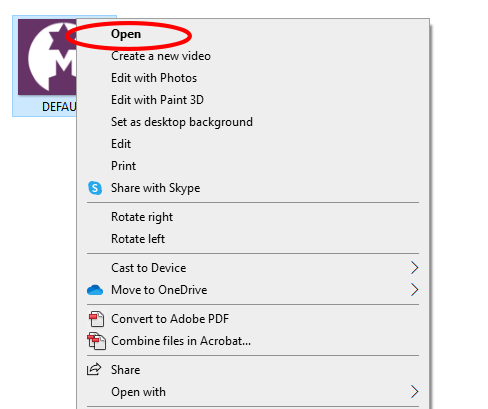
Upon clicking the 'open' tile, the windows 10 photo application should open:
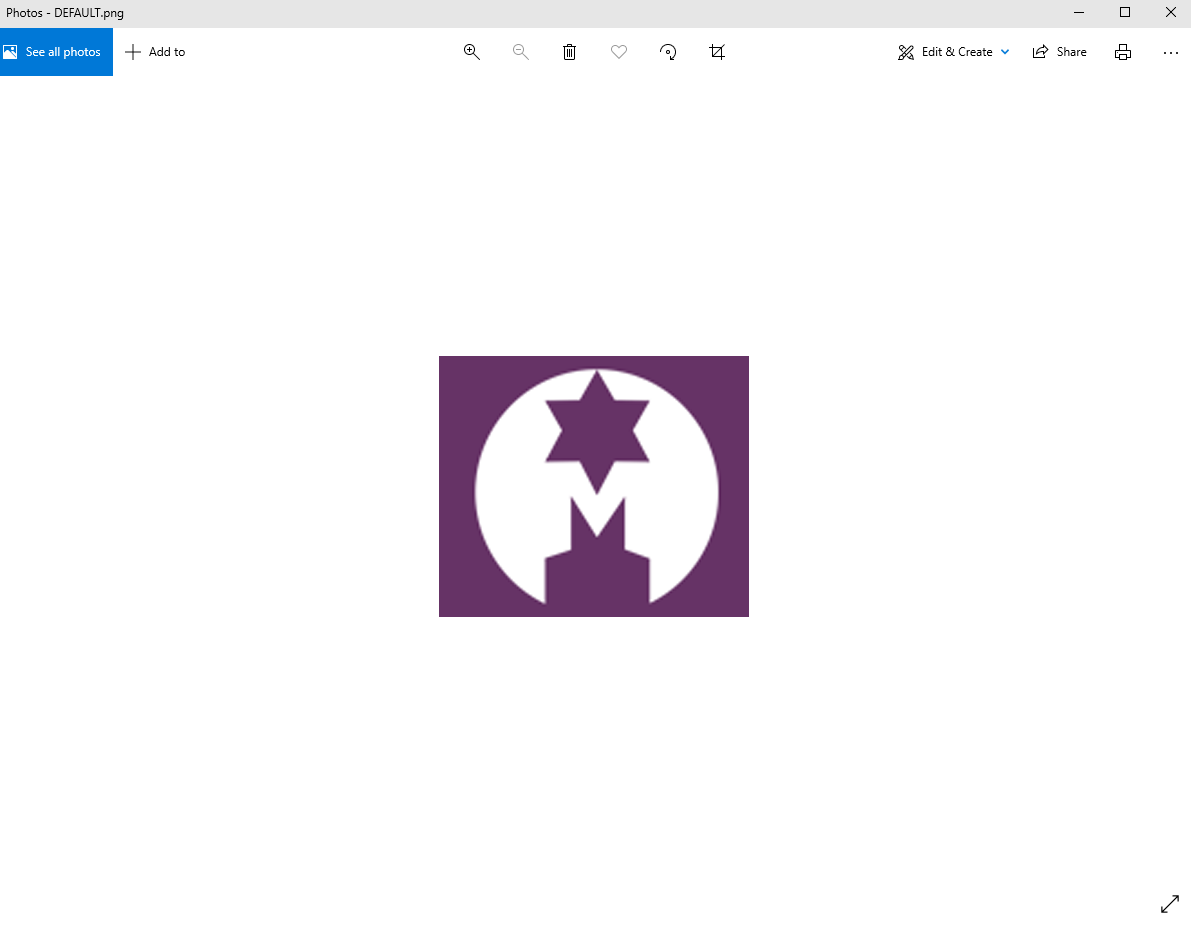
On the top right-hand side, you will see a three dotted button, as such:

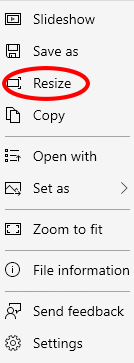
You should now see a drop down menu, here you must select 'Resize':

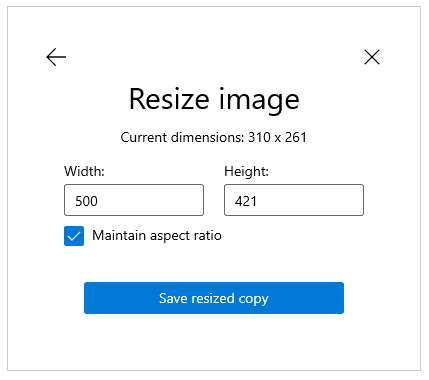
Select 'Save resized copy', this will then open a 'save as' file explorer.
click save on the bottom of the right-side:

Note: Merlin Online supports numerous image file formats, with the most popular ones being: PDF, JPG, PNG, BMP, GIF
Alternatively:
You can go to a image resizer website, such as: http://www.simpleimageresizer.com and upload your image to their resizer, as such:
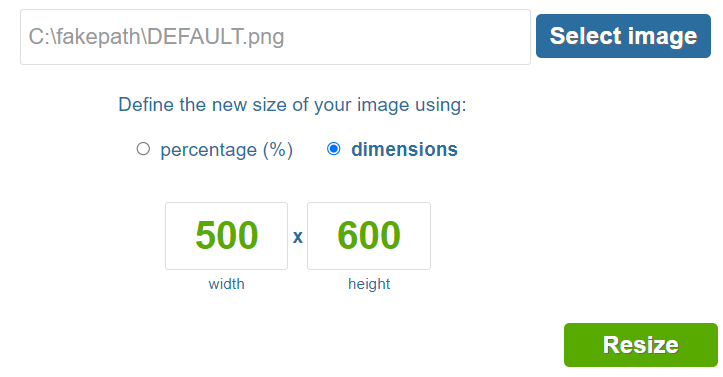

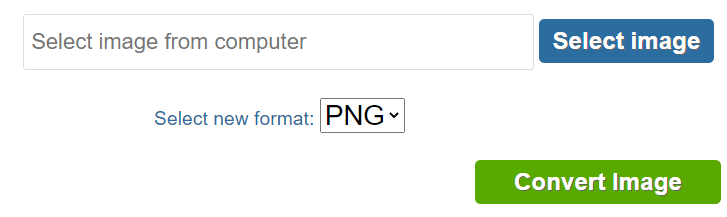
Image Compression:
To further streamline your website and improve your customers' experiences, we recommend compressing your main event's image in order to improve load times.
To do this, go to an image compression site such as the website we have previously used
Adding Images:
Once you have completed either of those, login to your .merlintickets admin area, go to 'Admissions'
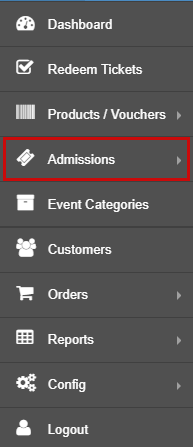
Then 'Events':

On the events page, choose one of your existing events (for more information on creating events: Creating an Event, Adding Tickets & Selecting Dates): 
Click on either the event's code or the 'Edit Event' button to edit - You will be directed to the edit event page.
On the edit event page:
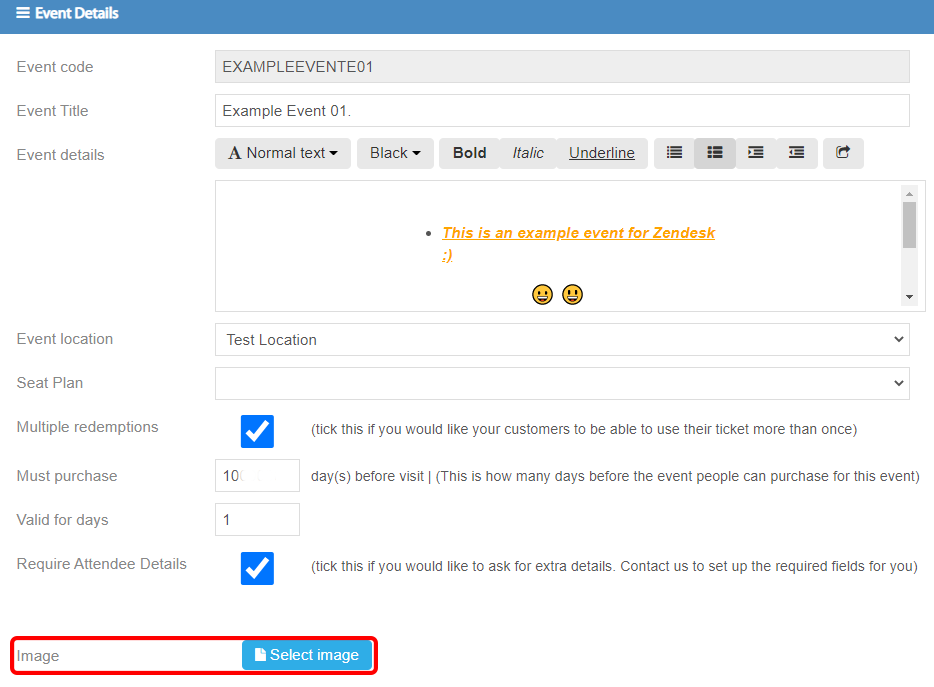
Click on the 'Select image' button, which will bring up the 'Open' file explorer - To make sure you are viewing all your files and not just a specific file type on that file explorer, open the drop down box on the right-side of it and select 'All Files':

Once you have found the image you would like to use, either select/click on the image and then select open, this will upload the image onto your event, as such: 
Afterwards, scroll back to the top of the page and click save:
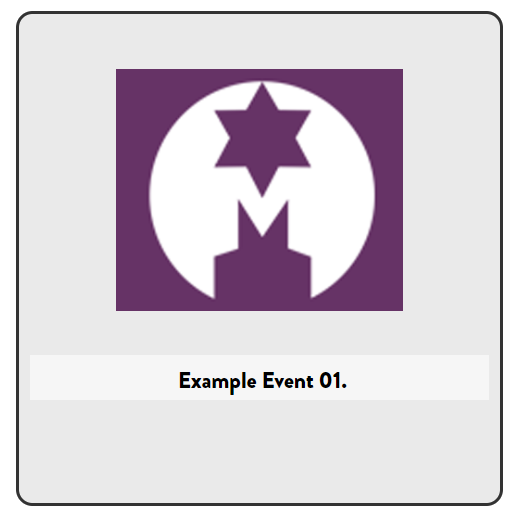
To verify the image has been uploaded, go to your .merlintickets website, then on the events page press Ctrl plus F5 to clear cache and you should see your new image:
That is about all you need add/change your event's image!
0 Comments