This is for users with admin access to Merlin Tickets. You can access the admin area by viewing your website (e.g. https://merlindemo.merlintickets.co.uk) then adding /admin to the end of the URL (e.g. https://merlindemo.merlintickets.co.uk/admin)
In this article we will show you how to change and add details to your order confirmation e-mails.
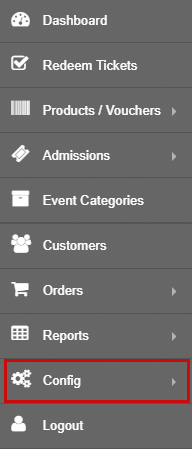
To start off: you need to be logged into the admin area, go to 'Config':
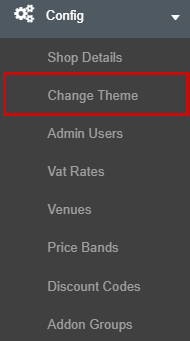
Then go to 'Change Theme':
On the 'Change Theme' page, go to 'Email Text Global':
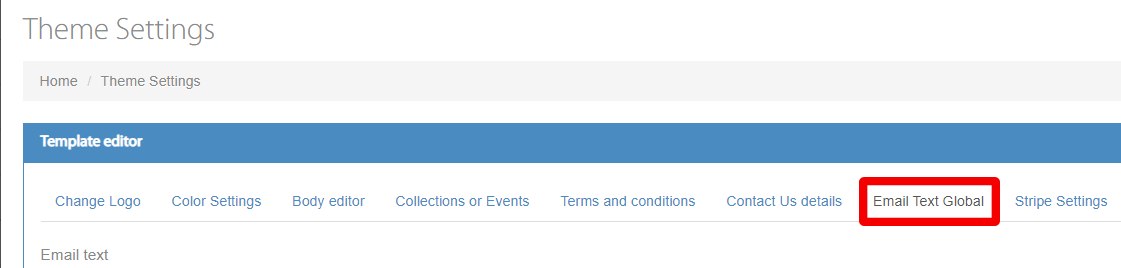
On this section you will find a text editor, much like that found in event descriptions (For more information on the different ways you can use the description box, check this article out: Making Your Event's Description More Eye-Catching).
Changing the details on this section will alter the order confirmation e-mail your customers receive when making an order. Note: Once you have added text to this field, upon removing said text and leaving the field empty, your order confirmation e-mail will no longer contain text as the standard template would be overwritten.
Below you will find an example confirmation e-mail I have created from the point of view of a customer:
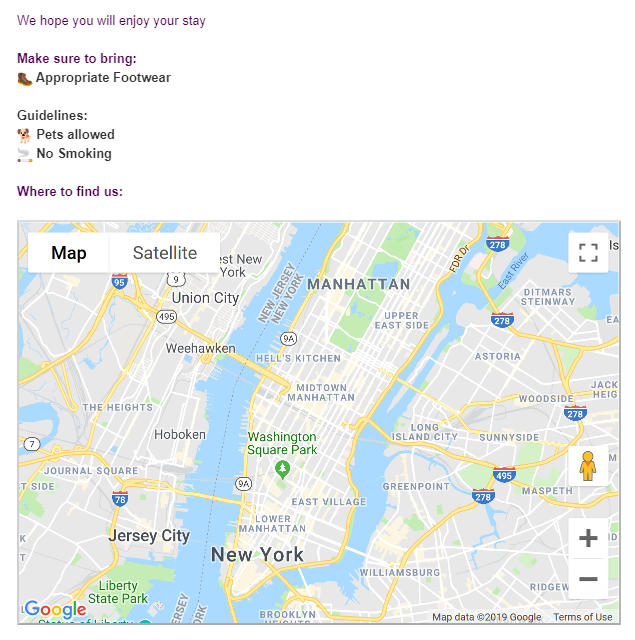
That is about all you need to know about order confirmation e-mails. We recommend trying this feature out for yourself to make your confirmation e-mails suit your brand more.
Still need some help? Contact us on +44(0)1226 294413
0 Comments