This is for users with admin access to Merlin Tickets. You can access the admin area by viewing your website (e.g. https://merlindemo.merlintickets.co.uk) then adding /admin to the end of the URL (e.g. https://merlindemo.merlintickets.co.uk/admin)
In this article, we will show you how to create pre-paid vouchers in Merlin Online.
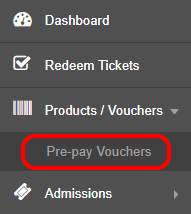
To start off, make sure you are logged into the admin area of your '.merlintickets' website. On the dashboard, look for the 'Products/Vouchers' button on the left-hand side menu, on the drop-down of the button select 'Pre-pay Vouchers'.
On the 'Vouchers' page, select the '+Add' button on the top-left side of the page:

Once you are on the voucher creation page, this should look quite similar to the event creation page
Below is what you should expect to see, with the addition of annotations:
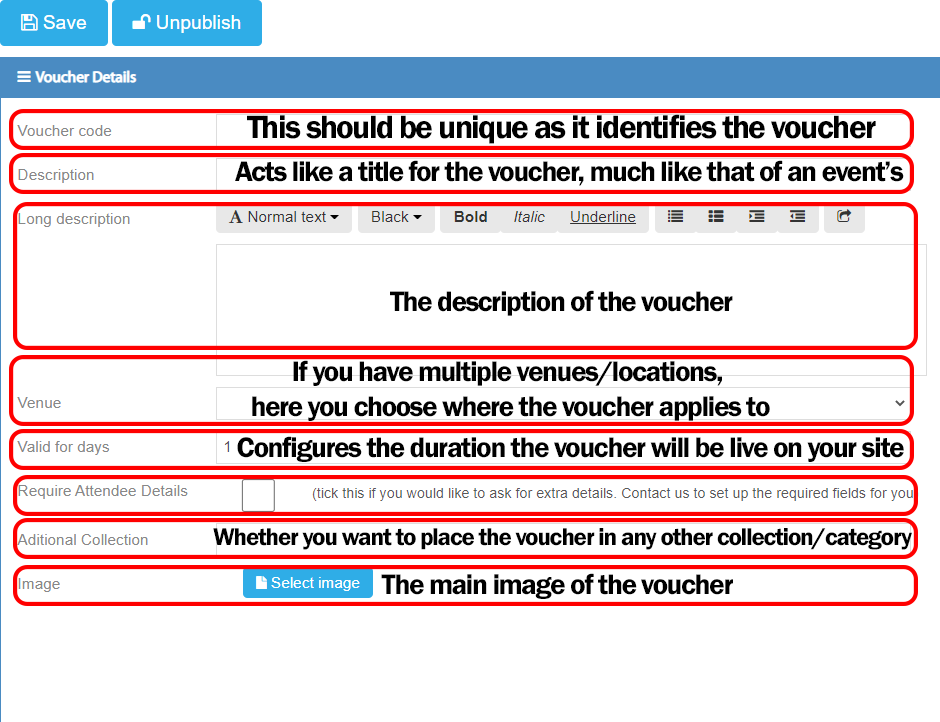
Once you have filled in all the fields, click the save button above the "Voucher Details" on the left-side.
Now that you have saved those details, it is now time to complete the variants. Voucher Variants act much like tickets on an event, they allow you to have individual voucher times (i.e. different priced ones or different eligibility ones). To create a variant, on your voucher scroll down to the bottom of your page, you should now see a variants tab, as such:
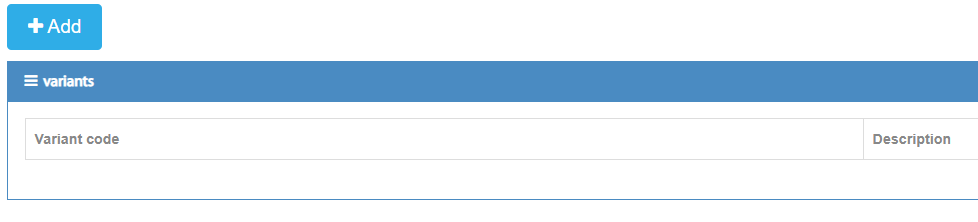 Select the '+Add' button, this will direct you to the variants' creation page which looks like such:
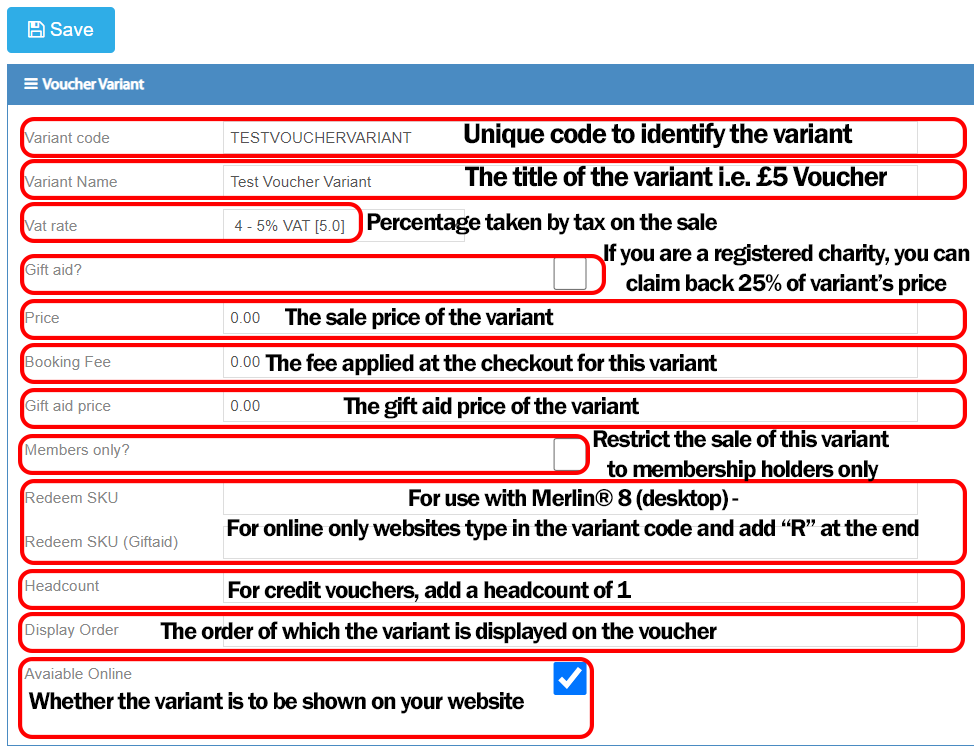 Note: For the headcount of variants, if you offer an 'experience' voucher you could alter the headcount to how many people that variant allows to attend. The headcount on variants has no affect on the system but it is a good way to gather how many individuals you have that turn up as opposed to just knowing how many vouchers were bought.
Now that you have also filled in the details for the variant, select the 'Save' button. As you have created a voucher and a variant, you can now add it to a category.
To add a voucher to a category, go to:
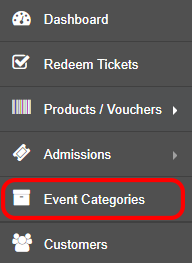
More information on categories can be found here: Adding an Event To Your Website Using Categories
Select the category you want the voucher to reside in, then look up the voucher code in the search bar, once you have found it select the add button and your voucher should now be in your chosen category.

Too add addition variants to the voucher, return to the "Products/Vouchers" page and repeat the variants section we previously covered.
That is about all you need to know on setting up vouchers in Merlin Online.
0 Comments