This is for users with admin access to Merlin Tickets. You can access the admin area by viewing your website (e.g. https://merlindemo.merlintickets.co.uk) then adding /admin to the end of the URL (e.g. https://merlindemo.merlintickets.co.uk/admin)
Once you have logged into your account, you will be presented with the dashboard view. Which gives you quick and easy access to everything you need to sell online.
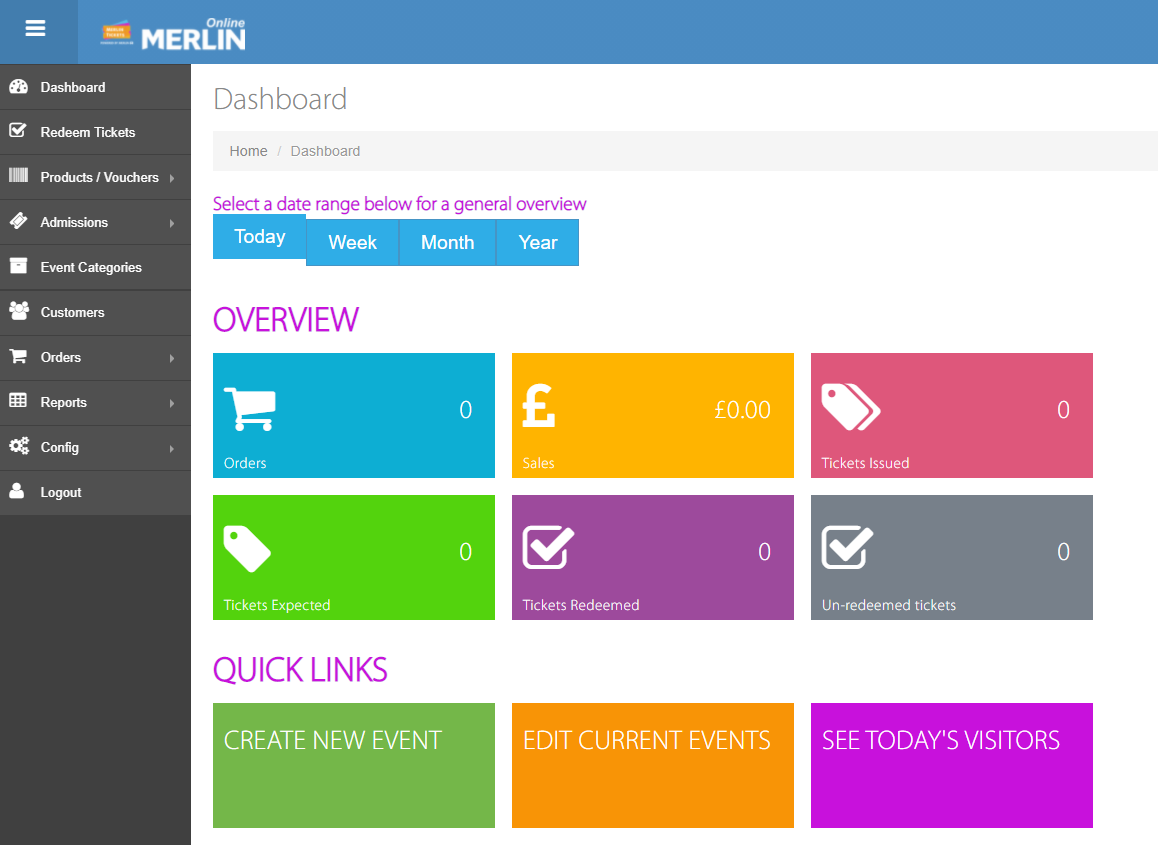
The default view is set to "Today" but you can choose to see details in the quick access menus for week, month or year.
Date Range Picker:
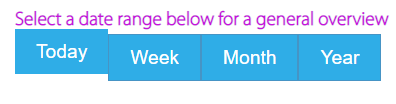
The date range picker allows you to configure the data shown on the overview section of the dashboard. By selecting one of the options, it shows the data covering that date range (i.e. sales, orders).
Overview:
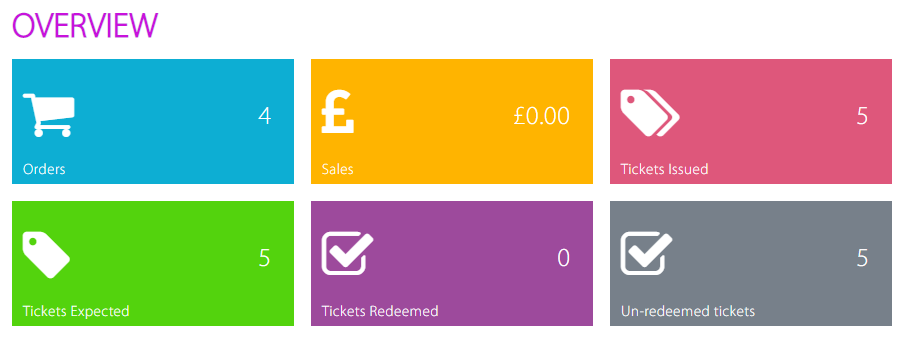
This tells you your total amount of orders made in the date range you specified on the date picker
Total revenue (in pounds) generation by sales
The amount of tickets purchased (redeemed and un-redeemed)
The customers expected to turn up to your event (have purchased tickets)
The total amount of tickets that have been redeemed (scanned) so far
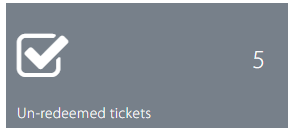
The total amount of tickets left to be redeemed
Quick Links:
The dashboard provides you with quick links to streamline the use of Merlin Online.
This will immediately direct you to the event creation page, which not only makes it easier to get to it but also much faster.

This directs you to the Events page, which shows you all your published and unpublished events

This directs you to a summary of the tickets sold (i.e. event purchased, order number, customer's name, date)
Events Calendar:
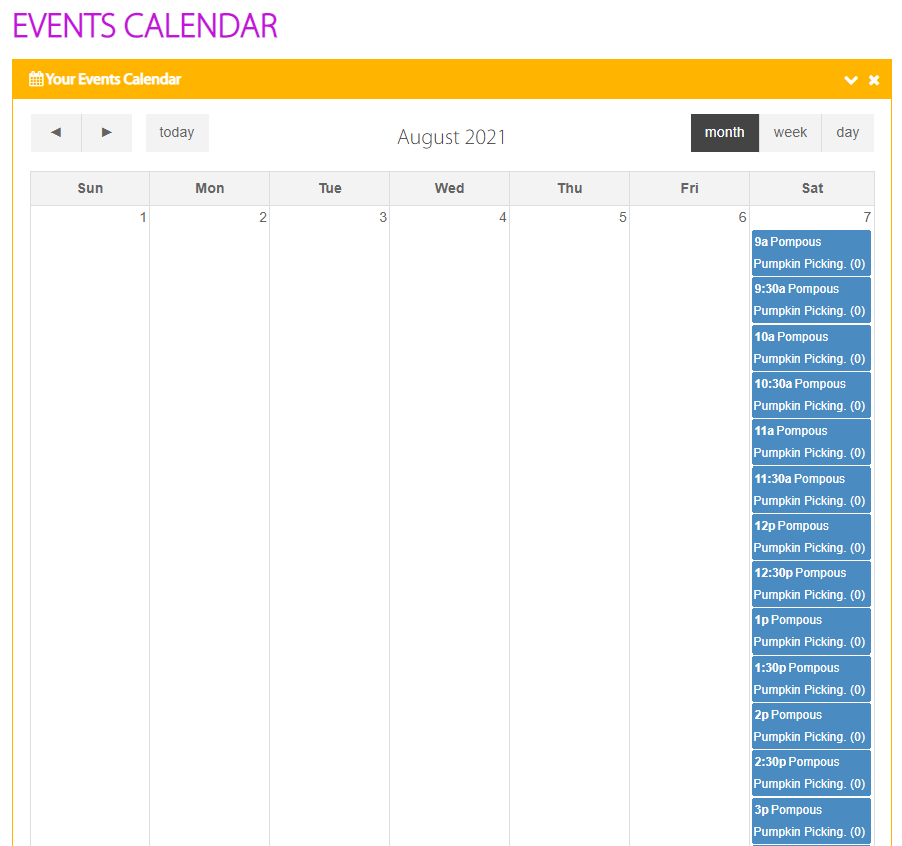
This provides you with either a daily, weekly or monthly summary of the events taking place so it allows you to plan accordingly and be kept up-to-date with all the events running.
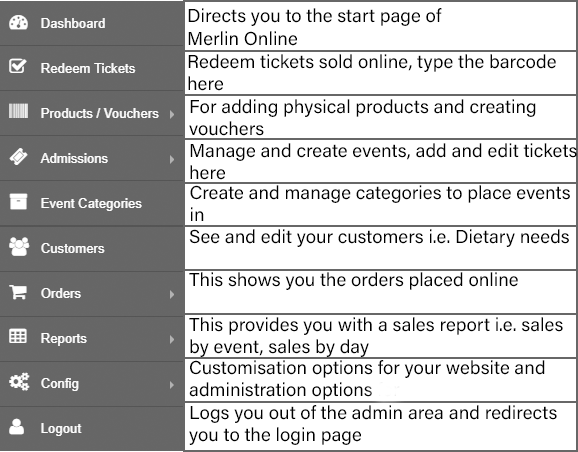
What each menu does:
On the left is your navigation menu, on the right is a description of what each menu does:
For more information on how to create events check this guide out: Creating an Event, Adding Tickets & Selecting Dates
For figuring out how to use categories check this guide out: Adding an Event To Your Website Using Categories
For configuring users on your website check this guide out: Configuring Users & Changing User Passwords
0 Comments